In our projects, we often have to create a point of intersection for two objects. For example, here we have created two lines AB and CD. To construct the intersection we use the Intersect Tool. This is under the Point menu (second from left in Toolbar). Here we have clicked on the Point Button and selected the Intersect Tool.
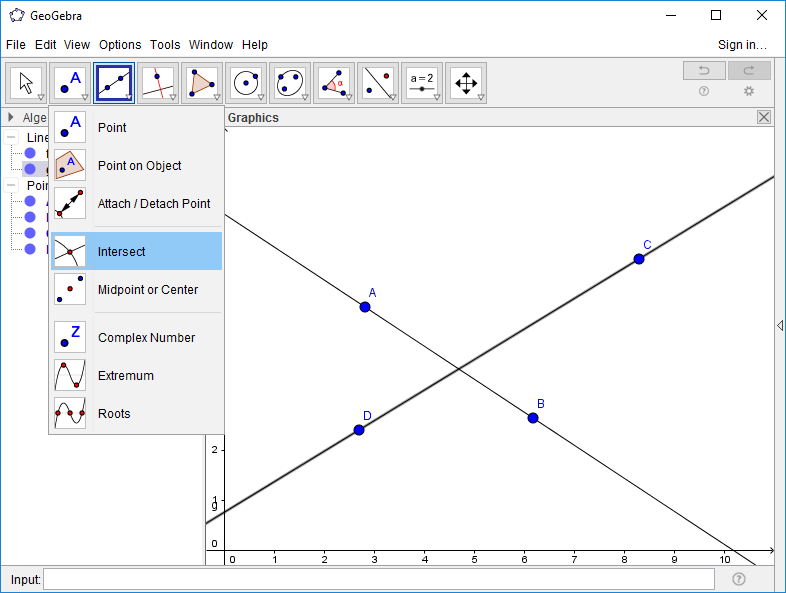
Once we have selected the Intersect Tool, it replaces the Point button and is the active Tool. If we hover over this button, we see a tooltip that describes what we need to select to construct the intersection. It tells us that there are two ways to construct the intersection - we either select the two objects or we click where we expect the intersection to be.

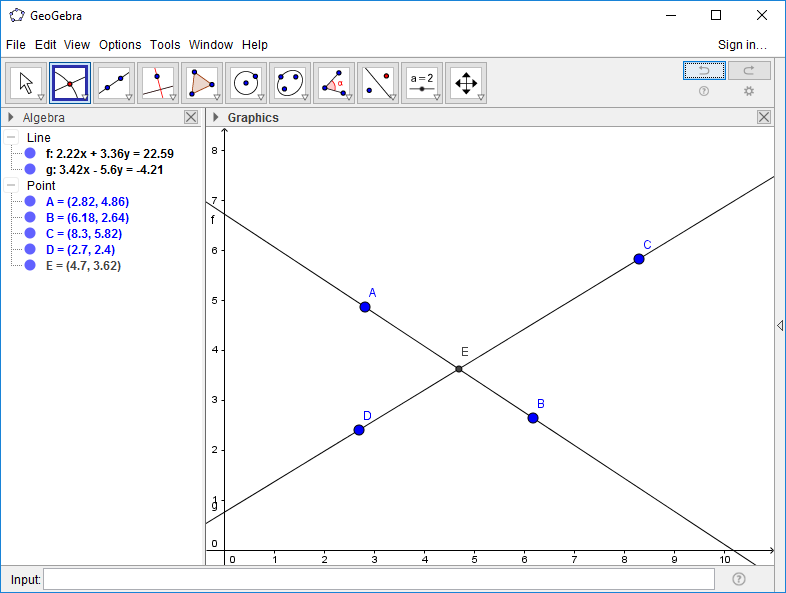
Let's try the first method - click on line AB and then on CD. The intersection point E is then constructed.
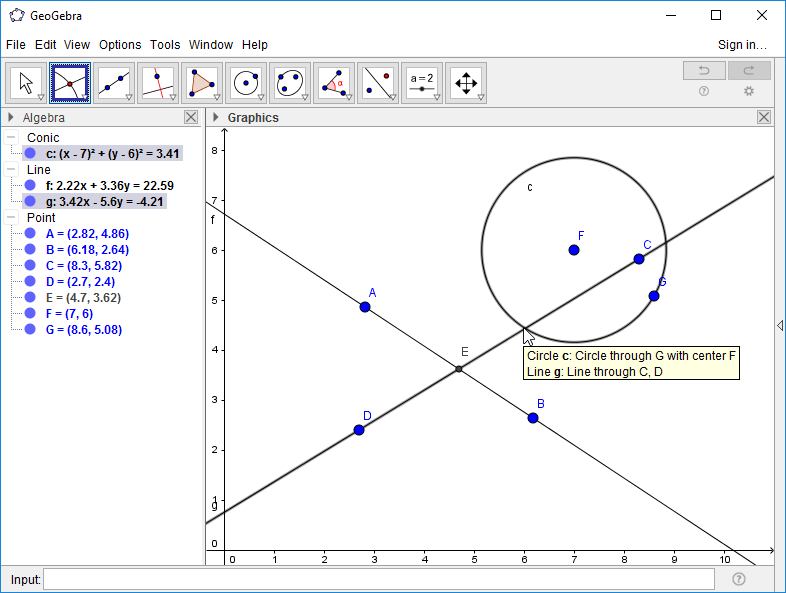
Let's construct a circle to illustrate the second method. Click on the Intersect Tool to make it active and hover your mouse over where the circle intersects the line. The two objects defining the intersection should darken in appearance, denoting that they will be selected for the intersection. A small box will also appear with info on which objects will define the desired intersection. Clicking the mouse will then create the intersection.
To Learn More
If you want more general info on using GeoGebra, there are numerous on-line tutorials. A nice brief intro is at www.ms.uky.edu . The GeoGebra web site is the definitive reference.